


Getting started
From installing to your first equipped build in about ten minutes. You need a PC with Windows 10/11, the PC version of Watcher of Realms and an account on the site (e-mail, Google, Discord or Telegram).
1Installing the app
Open the “Download” page and download Wardsage-Setup.exe. If the browser warns that the file is rarely downloaded, choose “Keep” (in Edge: “…” → “Keep”).
DOWNLOAD THE APPRun the installer. Windows may show a blue “Windows protected your PC” window saying “Unknown publisher”: the app has no paid developer signature yet. Click:
More infoRun anywayThen the User Account Control window asks “Do you want to allow this app to make changes to your device?” Click:
YesA Wardsage shortcut appears in Start and on the desktop. The app installs its updates itself — only ones signed with the project key.
2The sync code on the site
Sign in on the site and open Settings: the account menu at the top right → “Settings” (address /app/settings).
In the “Sync code” block press “Create code” and copy it right away: the code starts with rf_ and is shown only once. Lost it? Press “Reissue” — the old one stops working.
3The code in the app
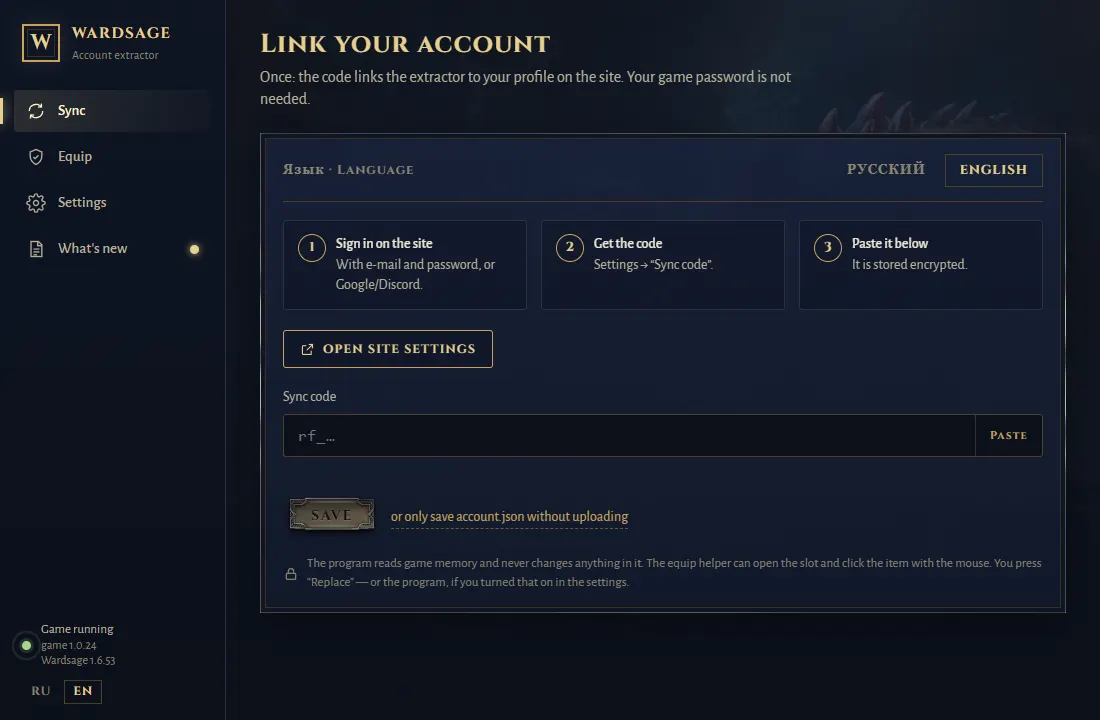
Start Wardsage. On the first run it asks for the code: paste it into the “Sync code” field (“Paste” button) and press “Save”. The code is stored encrypted.
4The first sync
Start the game and wait for the main screen (not the loading screen).
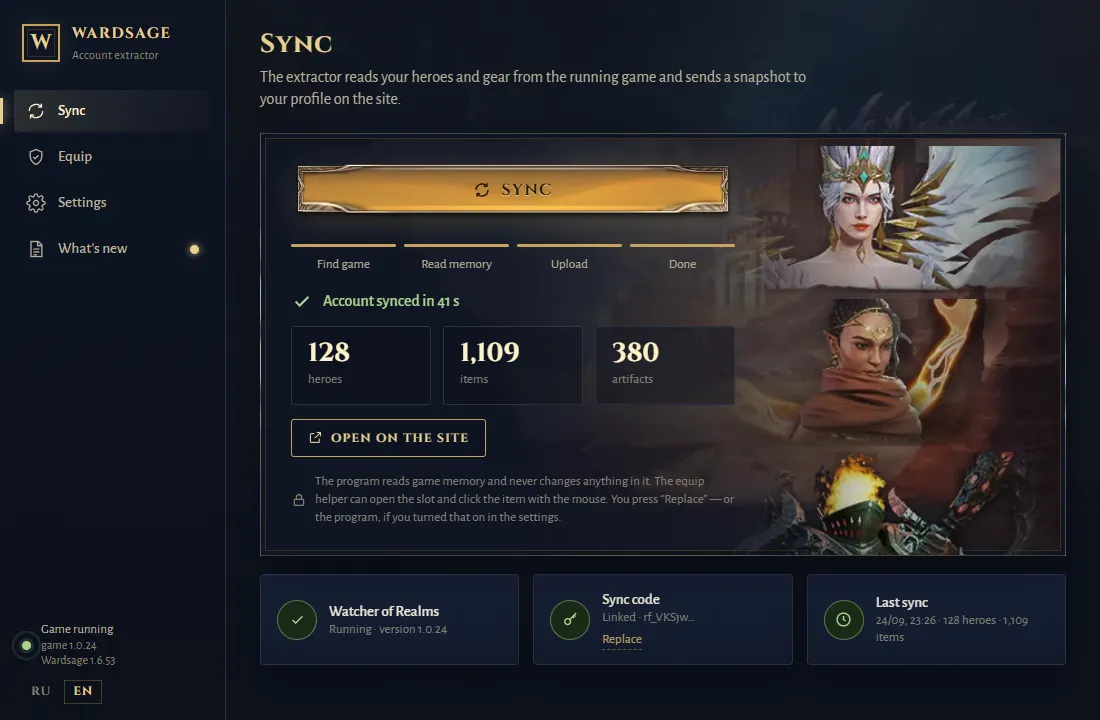
In the app press “Sync”: reading takes a few seconds, then the snapshot goes to the site.
Open the site: your account is there instead of the demo (the last snapshot’s time is in Settings, and in the site header on a wide screen). “Auto sync” in the app’s settings uploads the account after gear changes and every 5 minutes while the game runs.
5A build for a hero → “Equip in game”
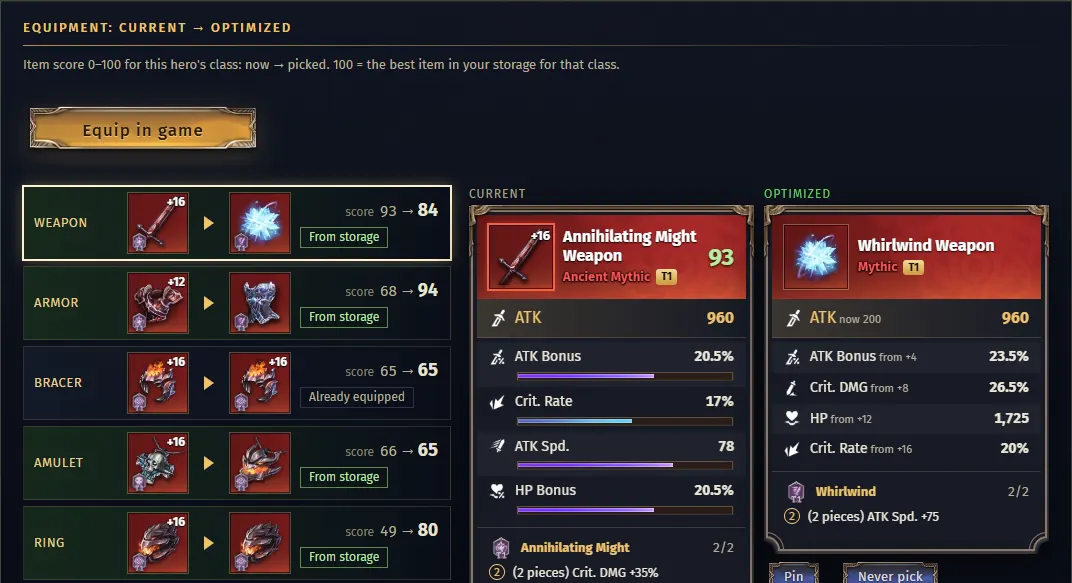
Open the Optimizer, pick a hero and what matters most: damage, balance or survival. At the top are the best builds found, below is what to take off and put on per slot.
“Take gear from other heroes” lets the optimizer take items off the other heroes, who are left without them. Without it only free items are used.
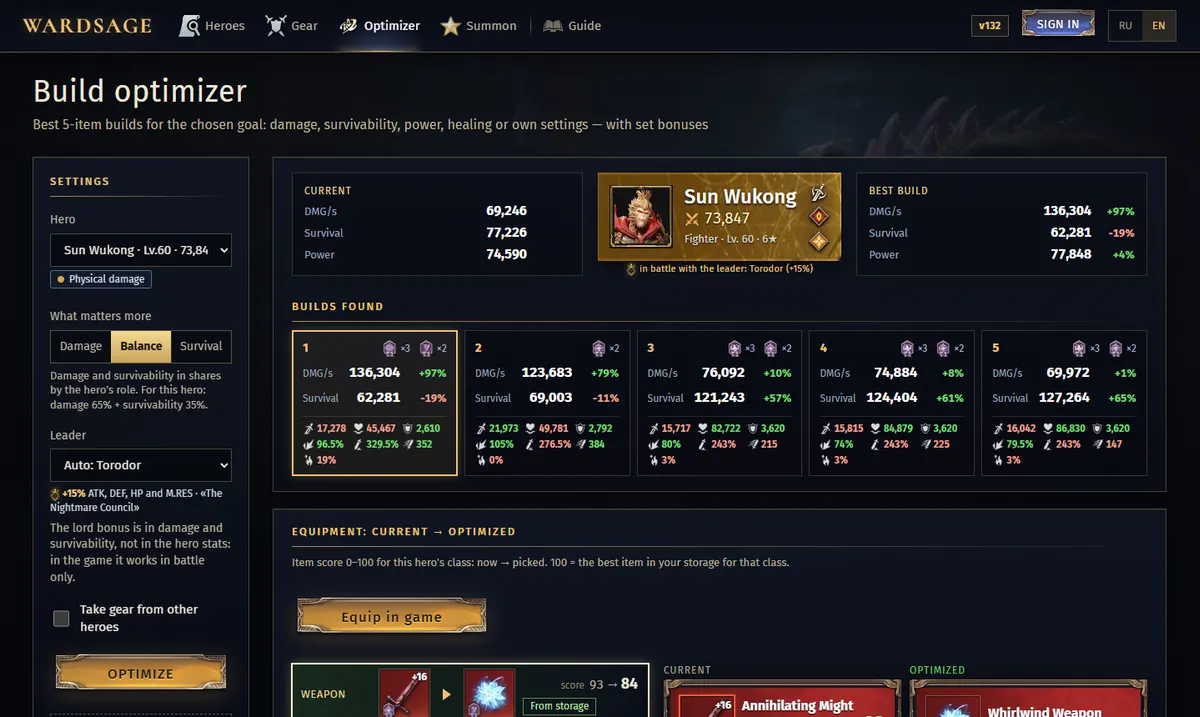
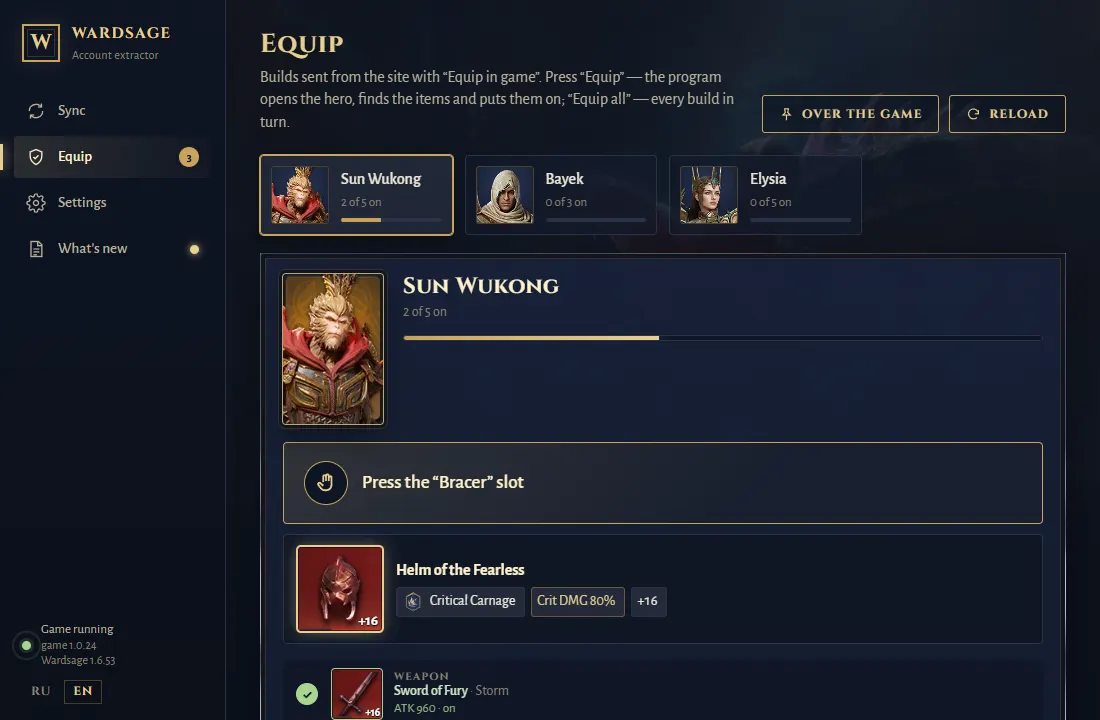
Press “Equip in game”: the build goes to the app, under “Equip”.
In the app press “Equip” on the build: it shows over the game which hero to open, which slot and which item to click. With “Auto click” on in its settings (off by default) it opens the hero and the slots and clicks the items itself. You press “Replace” — or the app, if auto-confirm is on too.
6Recast
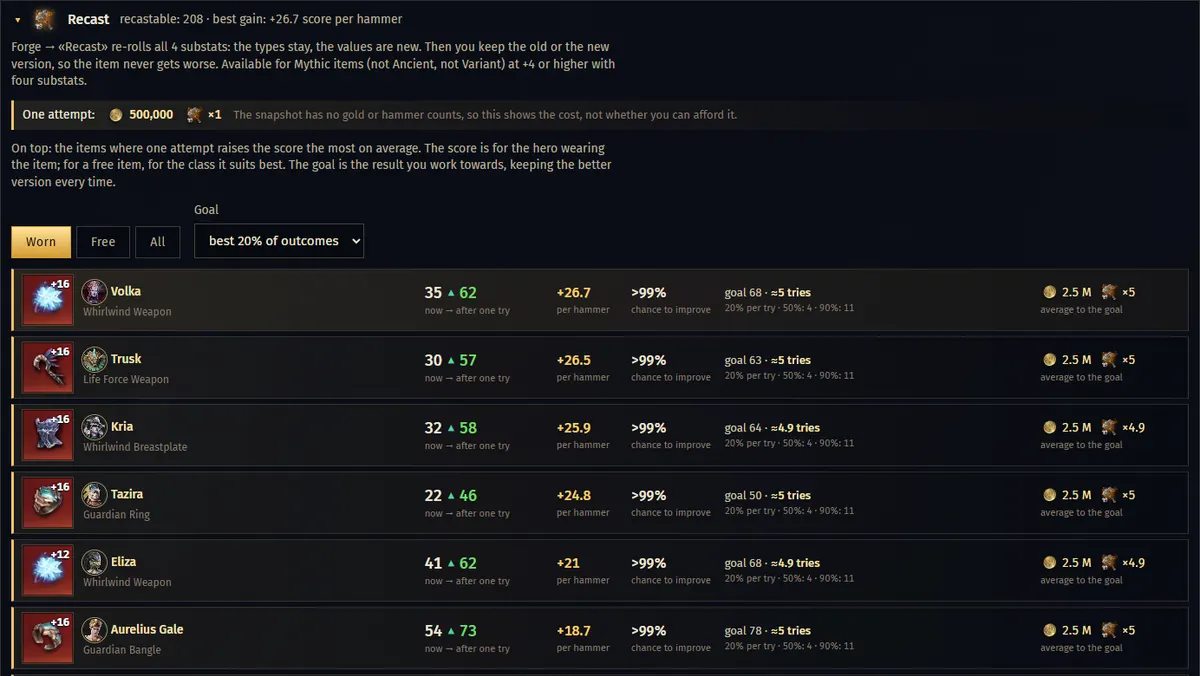
On the Gear page open “Recast”. At the top are the items where one try raises the score most; at the bottom, the ones to leave alone.
Pick a goal — the top 20% of outcomes, 10% or a score. Next to each item: the chance to improve, the score per hammer, and the average tries and gold to the goal. In the game you keep the old or the new version after a try, so the item never gets worse.
7Equipping: tips
- Keep the game window in front. If you switch to another window, the app waits and goes on by itself when you are back in the game.
- Leave the mouse alone while the app clicks. Touch it and the app pauses, then goes on when you let go.
- Start from the city or the heroes screen: from there the app gets to the hero by itself.
- In the hero grid turn on the large cards and clear the faction or class filter: the app looks for the hero in the grid.
- If “Hide equipped” or another filter is on in the gear list, the item may be hidden — clear the filter.
- The game opens the bracelet, amulet and ring slots after a story stage: the app cannot open a locked slot.
8If something goes wrong
Didn’t find an answer, found a bug or have an idea — write on our Discord: it has channels for bugs, questions and suggestions. With a bug report, attach the app’s log (Settings → “Log”) and its version; for the site — the page and what you clicked.
Report on Discord The app says “Too often” or “The site takes data once every 30 seconds”
The site takes a snapshot at most once every 30 seconds. Nothing to do: the app waits and sends it by itself.
The game or the app is minimized and equipping has stopped
The app clicks only in the game window and only while it is in front. Bring the game back and the app goes on by itself. To see the hints without switching, turn on “Over the game” in the app.
A build says “another account — not put on”
The build was made for another game account, and a different one is open in the game. Log in to that account in the game, or sync the current one and pick the build again.
Equipping stopped
Read the hint in the app: most often the game is not in front, you moved the mouse, the slot is still locked in the game or the item is hidden by a list filter. Press “Equip” again and the app picks up where it stopped. If the item is not in the list (sold or dismantled), sync the account and pick the build again. Still stuck? Open “Log” in the app’s settings and send it to the author.
“The site did not accept the code”
The code was revoked or pasted only in part. Issue a new one in the site’s settings and paste it in the app: “Settings” → “Sync code” → “Change”.
“No rights to read the game’s memory”
Restart Wardsage and press “Yes” in the Windows prompt: without administrator rights the game’s memory cannot be read.
The site shows old data
The site shows the latest snapshot; its time is in Settings (and in the site header on a wide screen). Press “Sync” in the app and the page updates by itself.